

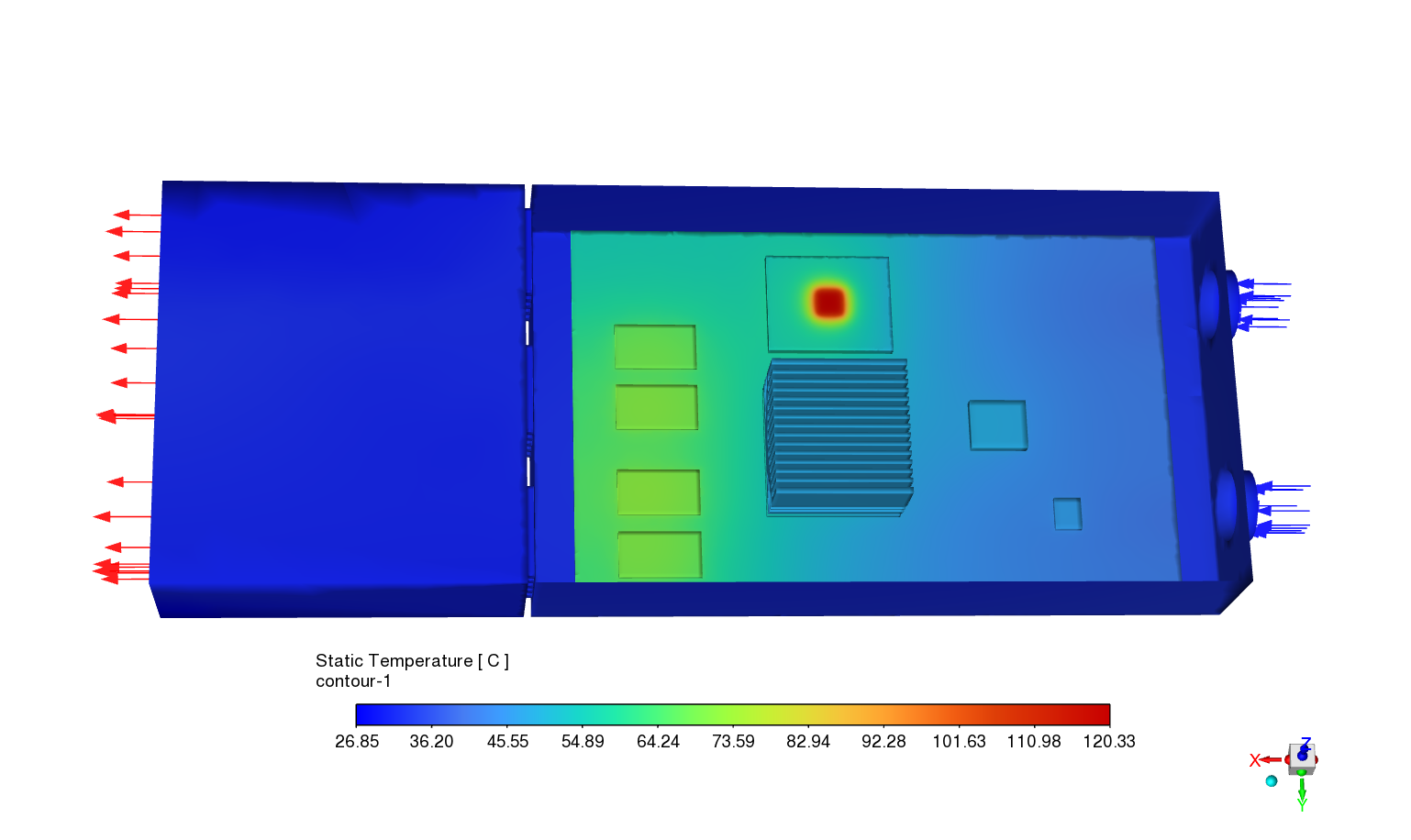
Heat Sink Temperature Field
Localized hotspot and thermal risk check
Heat sink / electronics cooling
Result Type: Temperature field
Object: Heat sink / electronics cooling
Purpose: Identify problem or risk regions
CFD Report Assistant
Image material is supported first. ReportCFD organizes your result into interpretation, speaker notes, and checks before presenting that you can use in reports or PowerPoint.
No geometry, mesh, or solver setup required. ReportCFD only processes the post-processing material you choose to upload and helps organize report-ready wording.
Input
Image upload currently supports PNG, JPG, JPEG, or WEBP - Max 20MB
Upload an image first, then confirm context before generation.
After you click generate, confirm result type, simulation object, and analysis purpose so ReportCFD can structure the output in the right CFD context.
Privacy boundary
ReportCFD does not store your uploaded material, text inputs, or generated report in our database or object storage. The material and context are sent to the AI provider only to generate the current response.
Upload an image first. You will confirm three context fields before generation.
Output
This preview shows the output structure before you upload your own CFD material.
Context used by AI
A concise explanation you can place next to the CFD result image.
Talking points for your briefing, ready to paste into PowerPoint speaker notes.
The simulation highlights a specific risk region with a hotspot near 120 °C on a bare component. We should evaluate flow redirection or adding localized cooling to mitigate this thermal risk.
What it saves you
Result type, simulation object, and analysis purpose tell ReportCFD how this result should be explained.
Result interpretation, speaker notes, and checks before presenting are separated so they can be copied into reports or PowerPoint.
Along with the explanation, ReportCFD lists key limitations, items to verify, and questions you may be asked.
Examples
Temperature, pressure, and streamline examples show how the output is organized: interpretation, speaker notes, and checks before presenting are separated.
Heat Sink Temperature Field
Heat sink / electronics cooling
Result Type: Temperature field
Object: Heat sink / electronics cooling
Purpose: Identify problem or risk regions
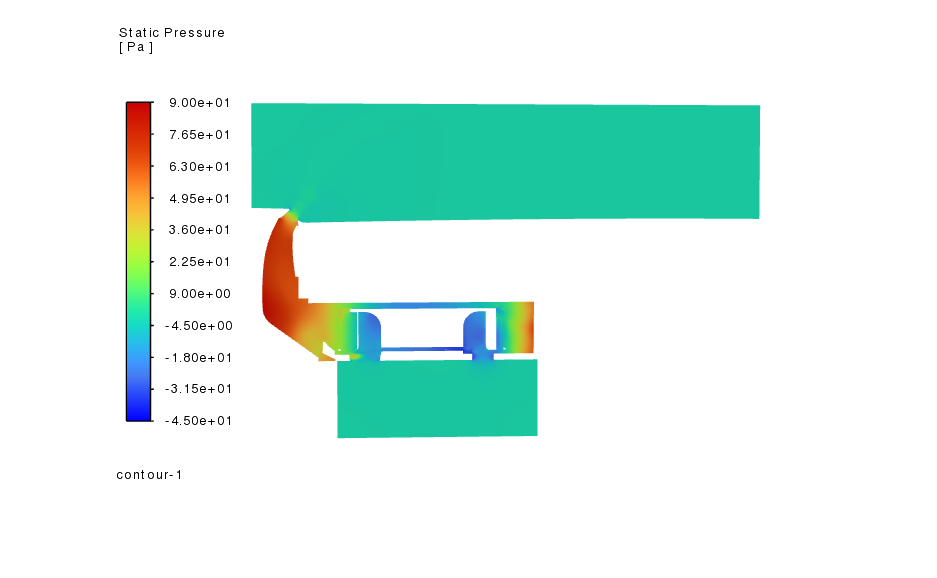
Pressure Field
Fan with volute and extended inlet/outlet
Result Type: Pressure field
Object: Fan with volute and extended inlet/outlet
Purpose: Identify problem or risk regions
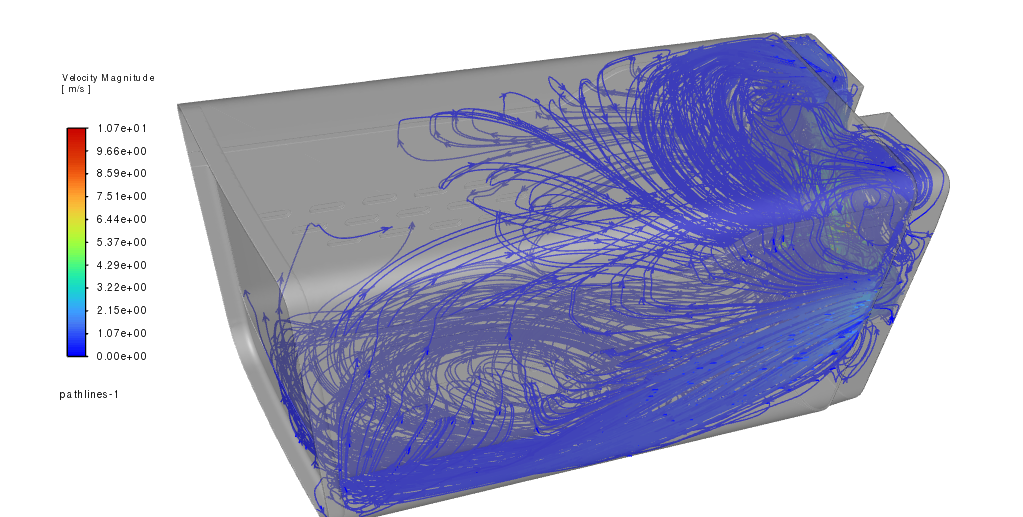
Streamline / Pathline
Pump / fan / turbomachinery
Result Type: Streamlines / pathlines
Object: Pump / fan / turbomachinery
Purpose: Understand physical behavior
How it works
No prompt writing and no full simulation project upload. Upload one post-processing image, confirm three context fields, and get wording engineers can review and copy.
Image upload currently supports contour plots, pressure fields, velocity plots, streamline images, vector fields, or convergence plots.
Choose result type, simulation object, and analysis purpose so the output follows the right CFD context.
Place Result Interpretation next to the image, use Speaker Notes for your briefing, and review checks before presenting.
Data boundary
ReportCFD does not connect to your solver or read CAD files, mesh files, case files, boundary conditions, turbulence models, or material properties. It interprets the post-processing material you choose to upload and drafts wording engineers can review.
FAQ
Upload a post-processing image, confirm three context fields, and generate copy-ready engineering notes with clear data and engineering boundaries.
Back to generator